What this case shows
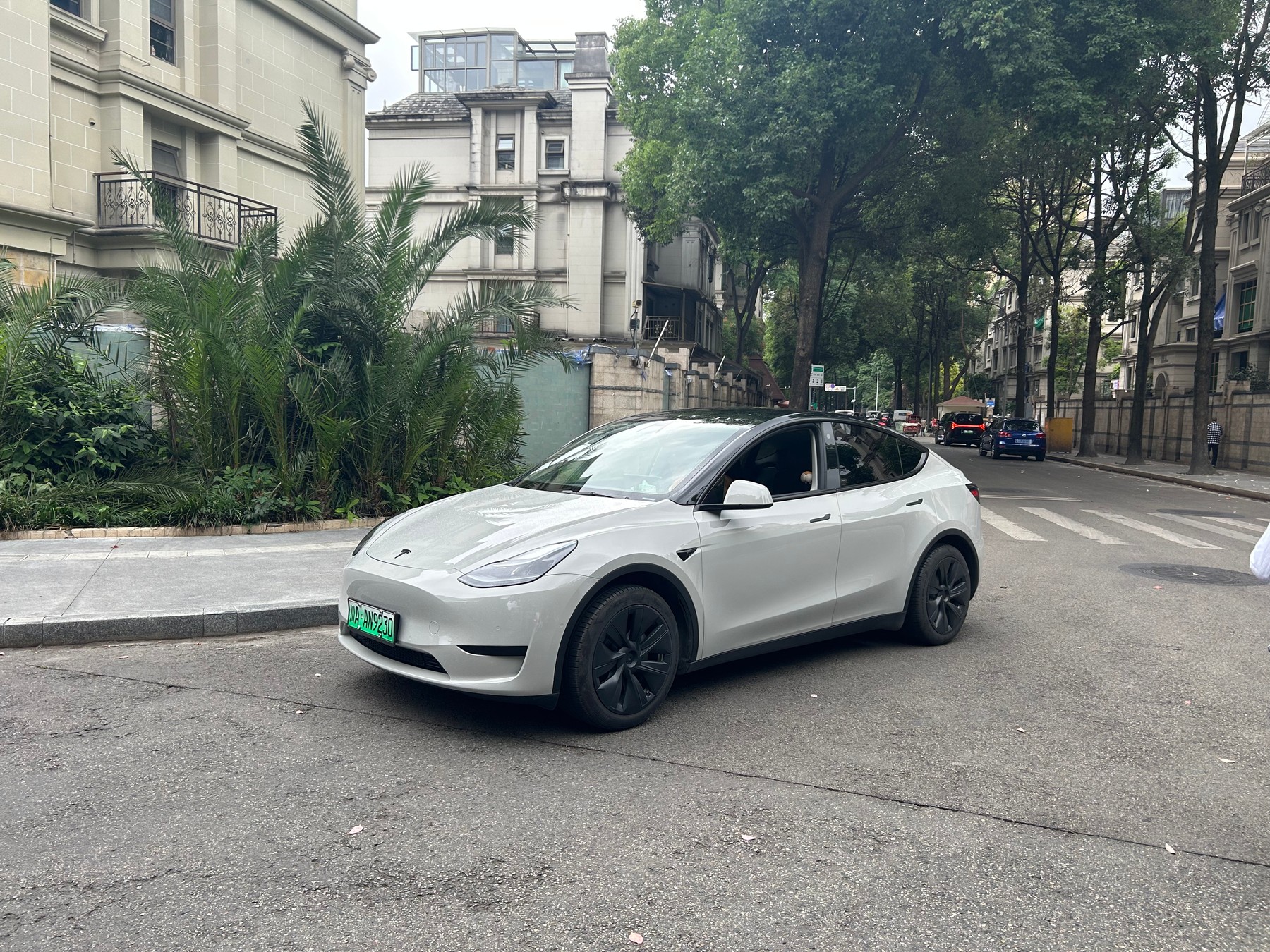
The input photo and full video above belong to the same completed Flying Car AI generation. The user authorized a public demonstration copy of that pair. The frames below follow the climb, airborne movement and landing in that same completed video.
This example was created with the 480p setting. Its MP4 measures 752 × 560pixels and runs for approximately 14.04 seconds. Play it in full, then use the same input-and-output checks for your own clip.
The photo supplies appearance
Look at the car's visible body shape, paint, windows and wheels in the input. Those features provide the appearance reference. The uploaded photo is not a first frame that the product simply moves across the screen: the model interprets the vehicle across changing views as it enters the stunt scene.
Compare the complete body in the photo with the vehicle during the climb and after landing. Some details can change as the model creates unseen angles and motion. To prepare your own input, use the photo selection comparisons and inspect the entire vehicle before uploading.
The fixed template supplies the action
Ramp Stunt is the single effect offered by this product. Its motion reference and server instructions guide the sequence, camera and setting. Users do not write a prompt, choose another effect or assemble the action from separate clips. A new photograph changes the appearance reference while the template continues to guide the same kind of stunt.
Three moments from this same clip
The approach and climb
Watch the whole vehicle moving toward and up the curved ramp. This establishes the car in the action scene. When checking your own result, look for a connected body and wheels, an understandable direction of travel and a transition from the ground onto the ramp.
The airborne action
Continue through the takeoff and airborne rotation. The view changes with the movement, making this a useful point to compare the roofline, body color and wheel arrangement with the input. A still captures one position; play the full video to assess continuity through the rotation.
The landing and exit
Review the return to the ground and the final movement, including moments partly covered by smoke. Check how the vehicle's position and body shape carry through the landing. The ending is part of the template-guided story, rather than a separately chosen conclusion.
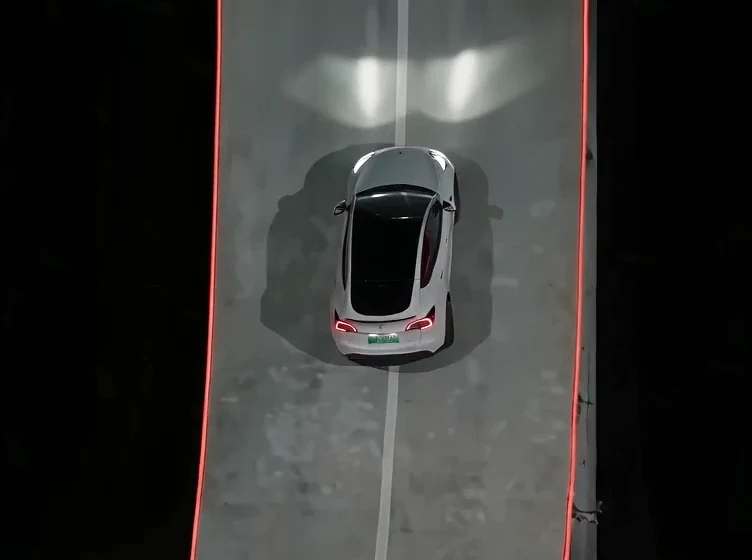
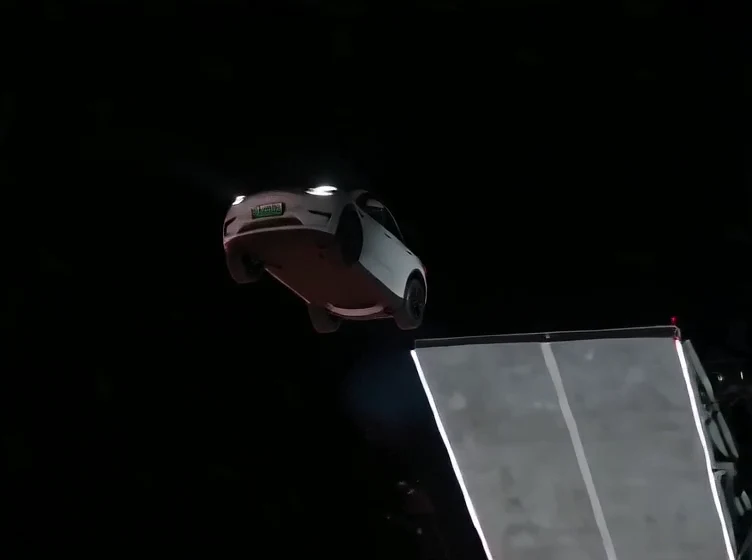
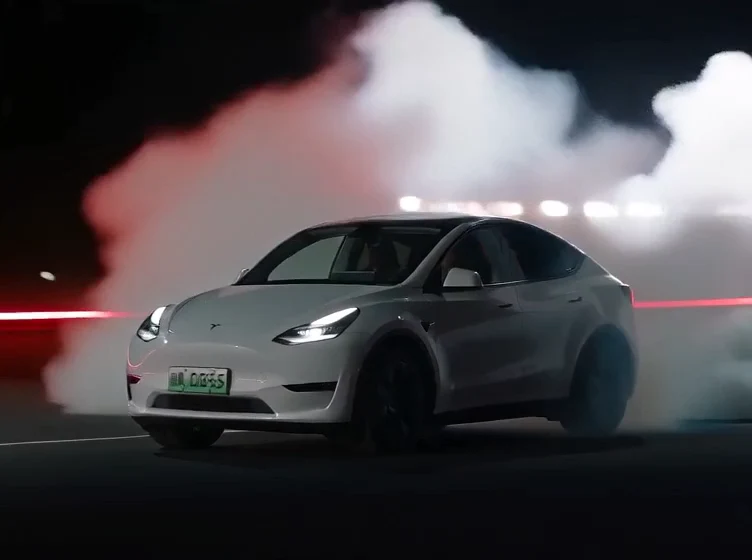
Three keyframes from the single generated video shown above.
Picture, sound and what was measured
The display copy retains the finished video's existing soundtrack. This content update does not replace the generation workflow's motion reference or audio. Play the complete clip with sound and compare the timing of the climb, takeoff and landing for yourself.
This 480p example lets you inspect how the vehicle carries through each part of the stunt. For your own clip, compare the moving body and wheels with your selected photo, and check the complete landing before saving a version to share. Every new generation uses your chosen photo and quality setting.
Make a version with your car photo
Open the Flying Car AI generator, select one suitable photo and choose quality. The fixed template handles its instructions and sequence. Review the credit packs and per-quality costs before continuing through sign-in and checkout if you need credits.
The complete tutorial explains task status, confirmed failed-task credits and downloading your MP4. Keep the existing task while it processes instead of submitting a duplicate. Download a completed private video within its 14-day retention period.